Update Boot Camp Radeon R9 M370X Driver on a MacBook Pro Retina 15″ Mid-2015 (Rainbow Six Siege fix)
Apple Boot CampUpdate: As of April 2016, AMD has finally released an updated Boot Camp driver for the 2015 MacBook Pro Retina 15″ and similar iMac Retina models. This updated driver fully supports Rainbow Six Siege and other new games. I recommend you use this supported driver at this time. However, the steps described below should still work if you want to make sure you have the latest and greatest unsupported driver from AMD for your Radeon R9-based Mac. Additionally, if you read the comments there are now a couple of sites that claim they have pre-packaged modified drivers available. I’ve not yet tested them, so proceed at your own risk.

If you purchased a MacBook Pro Retina 15″ model this year after late May, you may have purchased the model with the AMD Radeon R9 M370X discrete graphics processor. For those of us who run Windows through Boot Camp on this Mac, keeping the graphics driver updated is a little bit of a chore. It seems that AMD (maybe at Apple’s behest?) is not supporting the Radeon R9 M370X GPU in this MacBook Pro with their standard Radeon driver updates. Instead, this GPU will only run specific Boot Camp drivers that you can download from AMD’s site or through Apple’s Software Update utility.

The last time these drivers were updated was September 21st. Now that it is early December, these drivers are a little over two months old. For most people, that really isn’t much of an issue. Unfortunately, for those of us that like to play games through Boot Camp on our Macs, these drivers are a little long in the tooth. Specifically, if you are trying to play the recent release of Rainbow Six Siege on a MacBook Pro Retina 15″ Mid-2015 model, you will have noticed significant graphical glitching as this video demonstrates:

As the video states, it turns out the fix is to simply update to the latest Radeon graphic drivers. This normally would be a no-brainer easy fix, except that I stated above we MacBook Pro Retina owners who have the AMD Radeon R9 M370X can not update our drivers past the official September 21st release. I did a lot of research and found no solutions available. This is very infuriating, as I was fairly confident that AMD’s latest release probably would work on this GPU as it was part of a family of processors that pretty much use the same drivers. It is only because AMD specifically excludes the Radeon R9 M370X GPU from their driver installer that we are left out. If there was only a way to force the drivers to install, I felt I could make it work.

To make a long story short, after some research and experimentation, I have discovered a way to unofficially update the Radeon R9 M370X driver on a MacBook Pro Retina 15″ Mid-2015 to the latest version, fixing the issue with Rainbow Six Siege. Simply follow the instructions below and if you’re in the same boat as I was, you’ll find this to be a workable life vest until AMD and Apple release their next official driver release.

A Few Words of Warning

Obviously this is procedure is completely unsupported by Apple or AMD. While I do not think this procedure should cause any significant problems for your Windows installation or your Mac, installing this unsupported driver is completely at your own risk. If your Windows operating system crashes or your Mac blows up, it’s all on you. Apple or AMD will be of no help and will likely admonish you for trying something you read on the Internet. Additionally, I’ve only tested this on Windows 10 64-bit. In theory the core of this procedure should also work for Windows 8.1, but I’ve not tested that and will likely not ever test it myself. So far in testing my Boot Camp installation and Rainbow Six Siege for a few hours, almost everything seems fine. The only issue I’ve uncovered is that the screen brightness controls don’t work. There may be some other glitches lurking, but I’ve not suffered them yet. However, for me this is an acceptable trade-off, as I pretty much only use Boot Camp to do various Windows testing and play Windows games. However, if you are not going to play Rainbow Six Siege and you otherwise have no issues with your current Boot Camp installation, I would not advise following this procedure. Just be patient and wait for the next official Boot Camp graphic driver release.

Anyway, with no further ado, here is how to unofficially update the Windows 10 64-bit Boot Camp Radeon driver in a MacBook Pro Retina 15″ Mid 2015.

  • Download the latest Radeon drivers for R9 300 Series from this page: http://support.amd.com/en-us/download/desktop?os=Windows+10+-+64
  • Run the installer. It will fail with “We are unable to find a driver for your system. No supported AMD hardware was detected.” However, it will have copied the necessary installation files to your drive.
  • Edit the following file, noting that the path will be slightly different for newer versions of the driver:
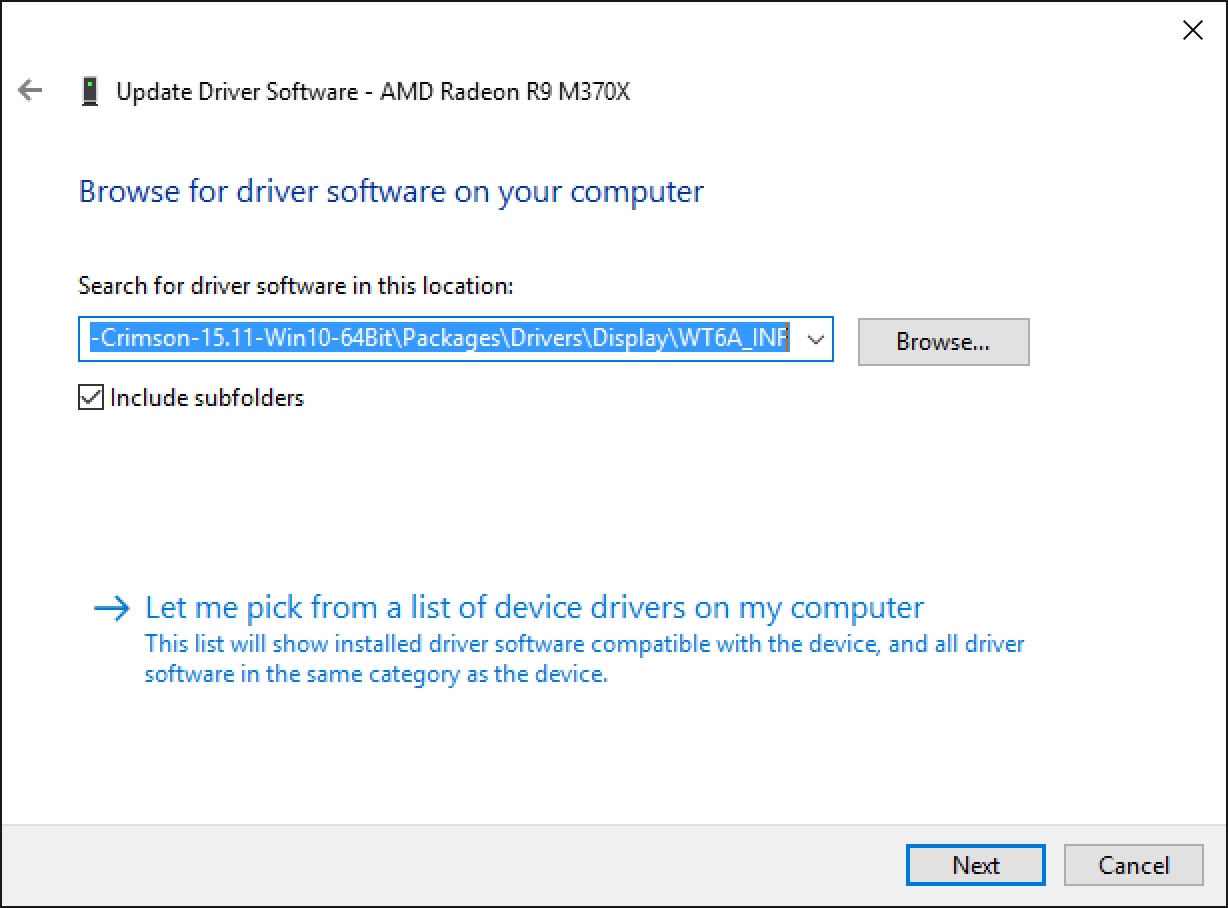
    C:\AMD\Radeon-Crimson-15.11-Win10-64Bit\Packages\Drivers\Display\WT6A_INF\C0296567.INF
  • Put a semicolon ; in front of the following line
    ExcludeID=PCI\VEN_1002&DEV_6821&SUBSYS_0149106B
  • Save the file.
  • The line above serves to exclude installing the Radeon driver for this specific GPU. A semicolon serves to mark the line as a comment, disabling the exclusion. This would normally be enough to force the driver to install on an unsupported system. However, it turns out that the driver is not digitally signed and Windows 10 64-bit by default will not install unsigned drivers. So we must disable driver signature enforcement first. Instead of detailing all the steps here, please read the following article if you do not know how to do this yourself. http://www.howtogeek.com/167723/how-to-disable-driver-signature-verification-on-64-bit-windows-8.1-so-that-you-can-install-unsigned-drivers/
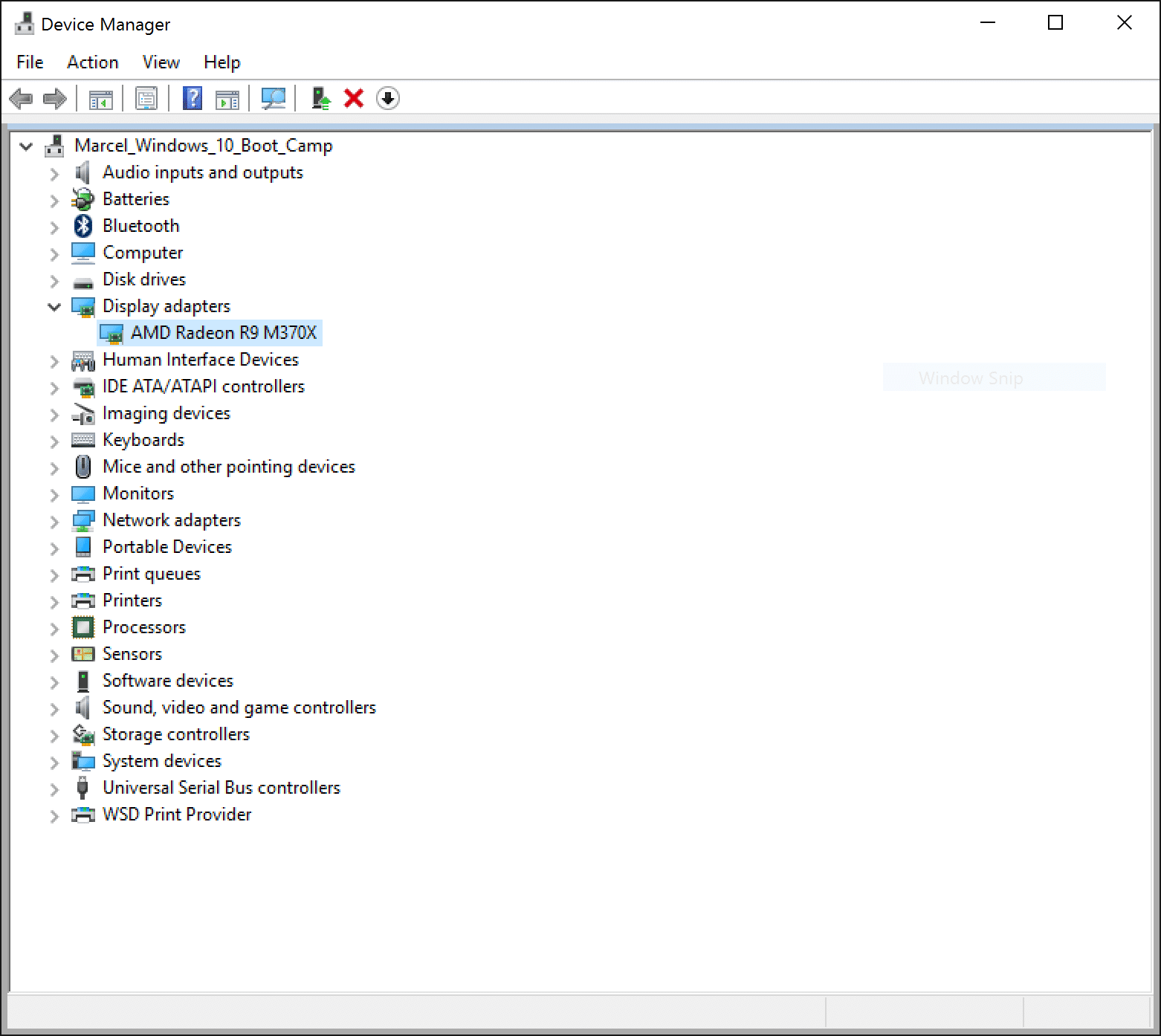
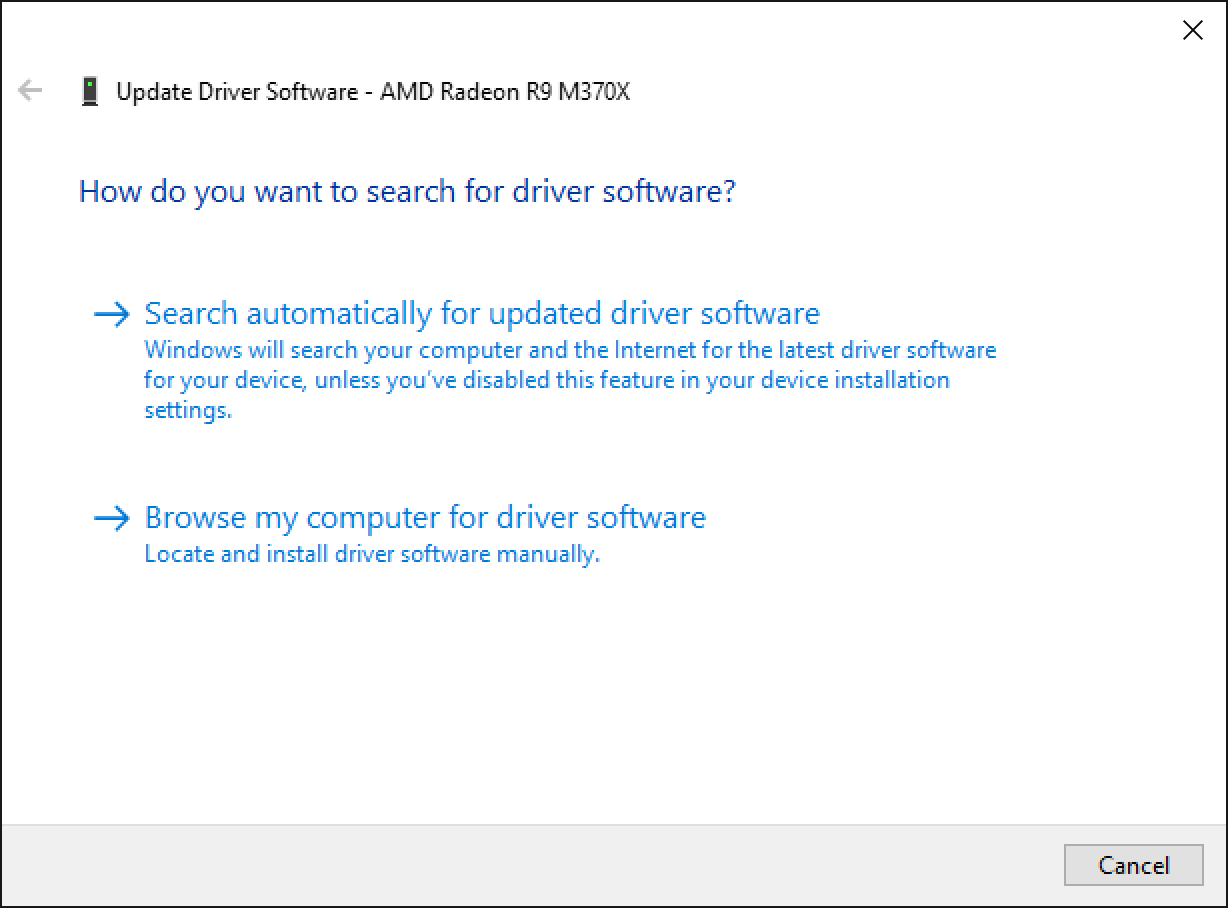
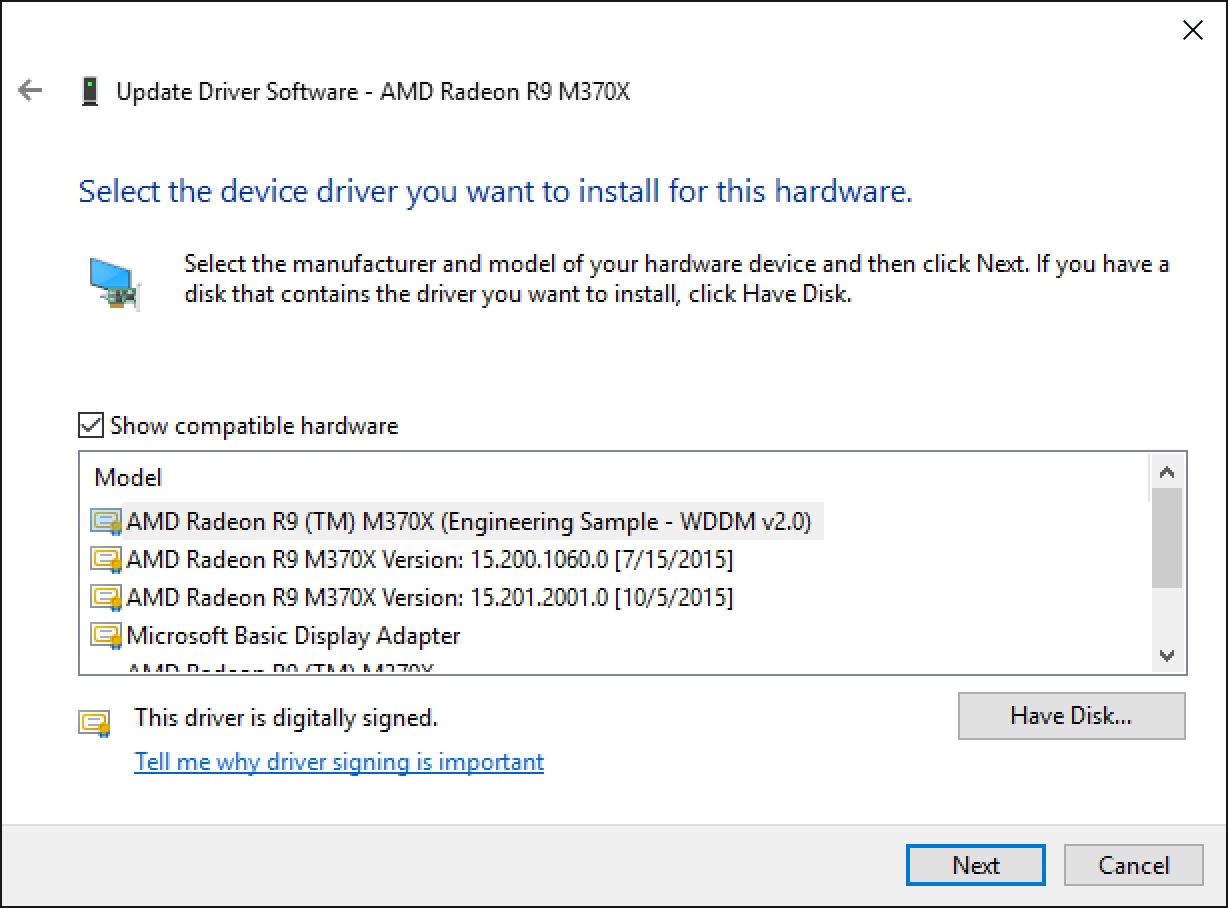
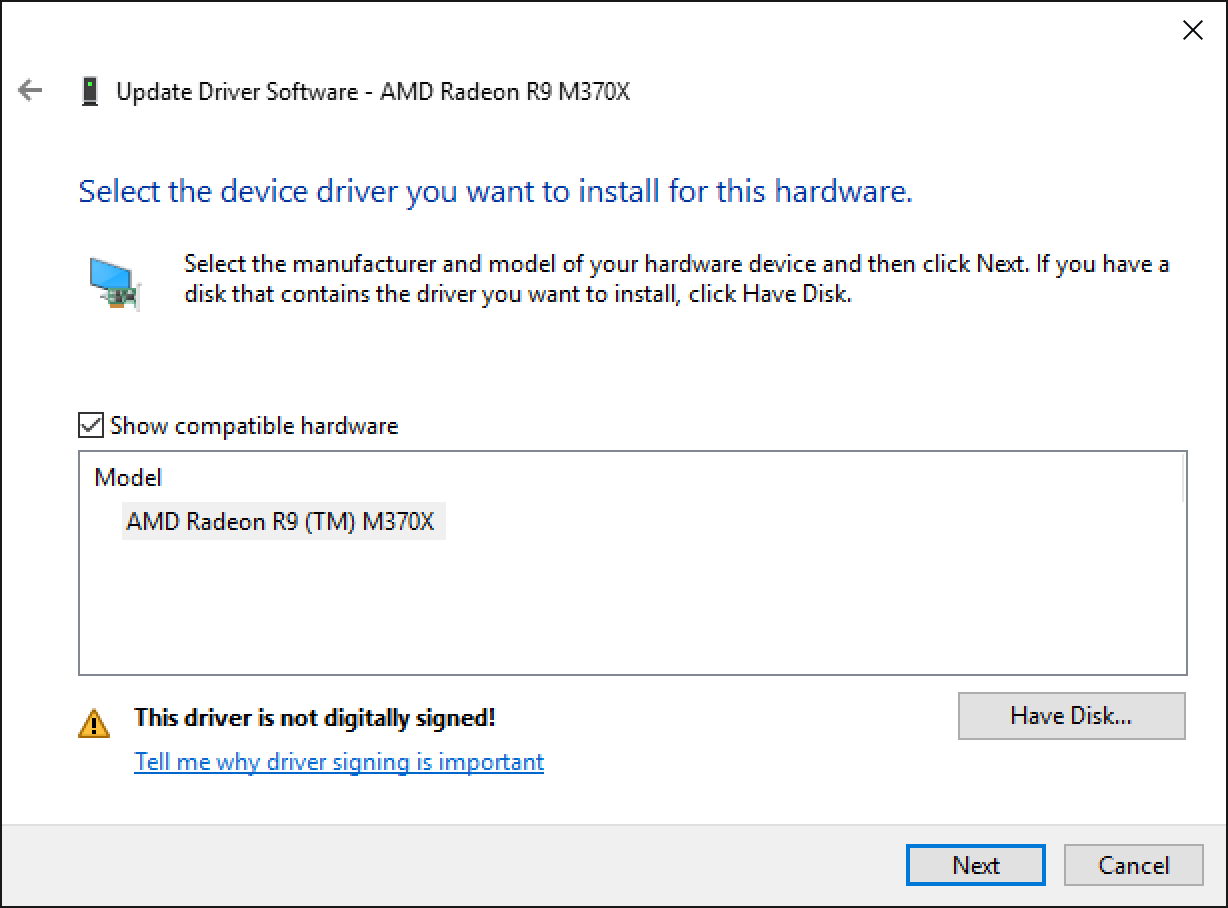
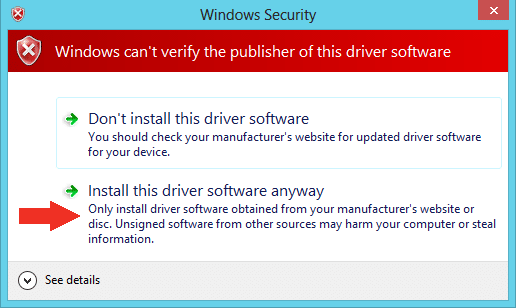
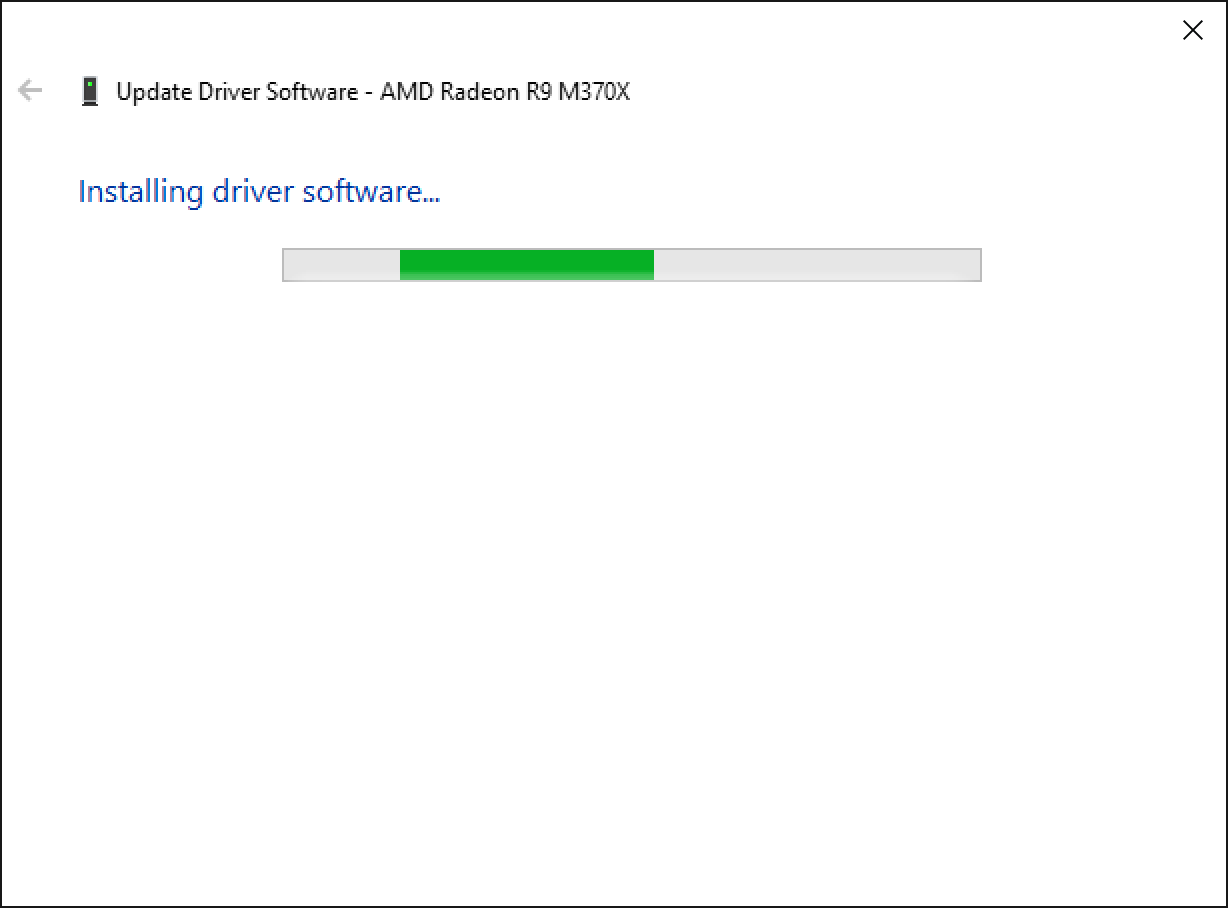
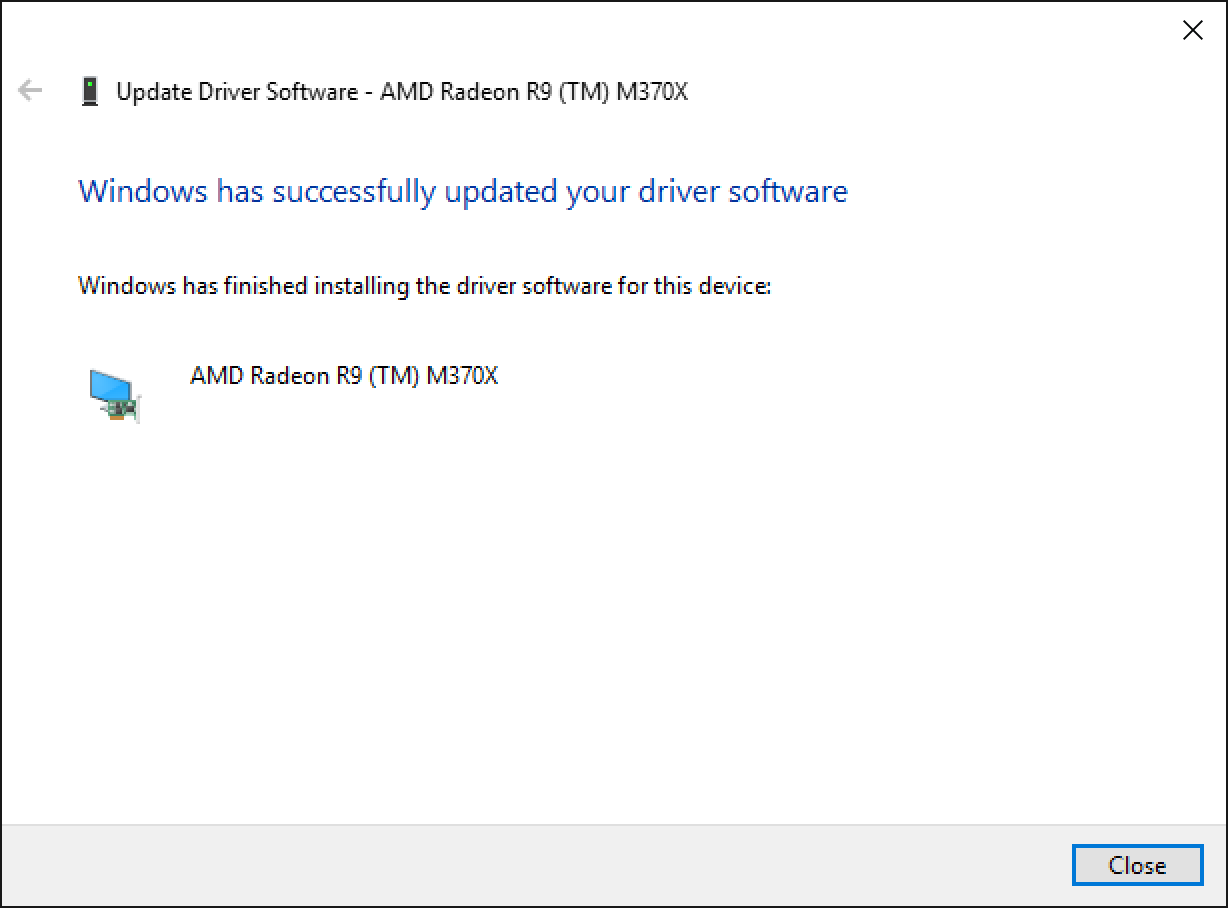
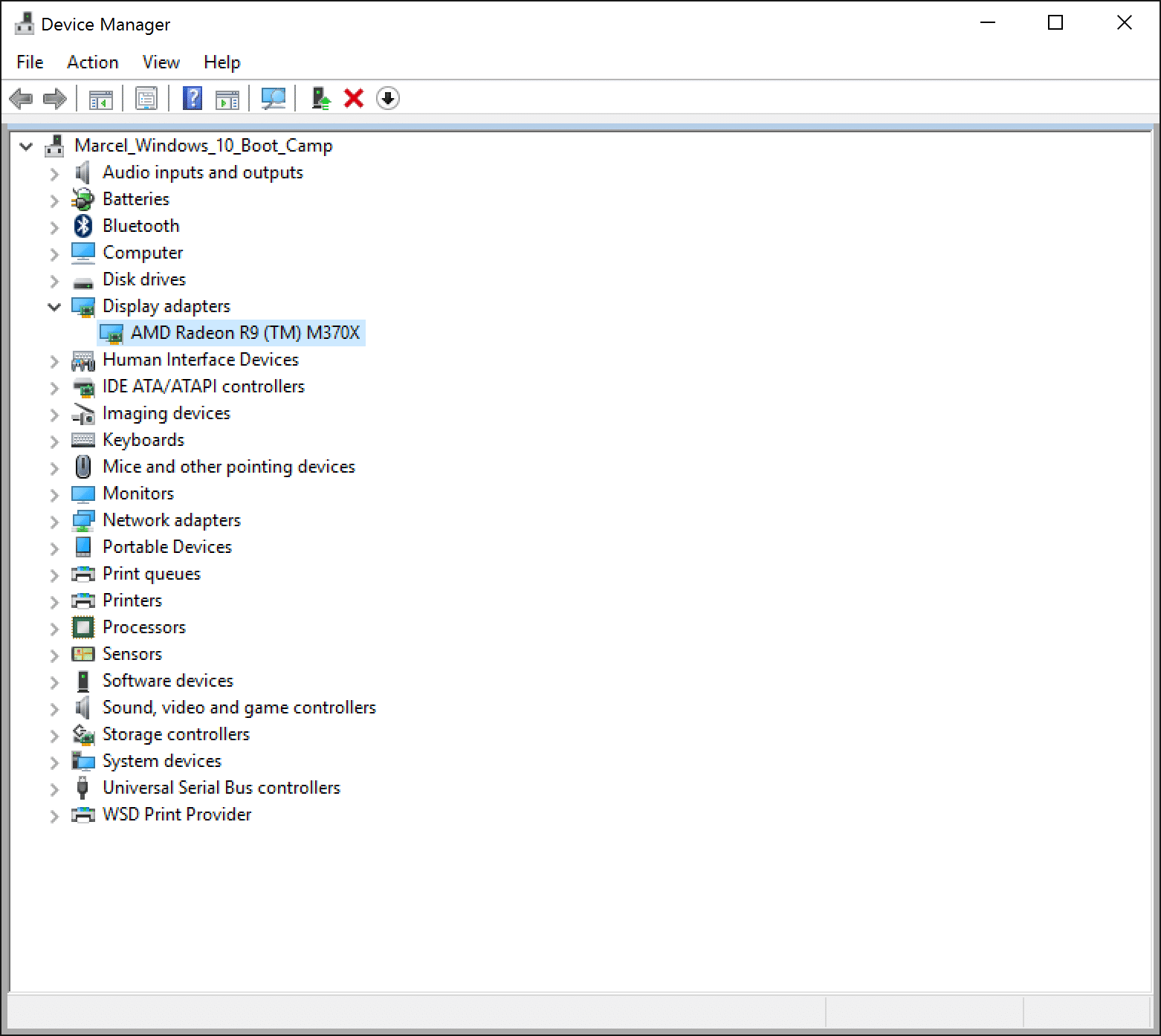
  • Once the computer has rebooted after you have disabled driver signature enforcement, follow the steps below that I have included screenshots for:

Now that the driver is updated, you should be able to run Rainbow Six Siege without the graphical glitches we had to suffer with earlier. Please be sure to keep your head down, look around those corners, and watch your teammates backs!

Hopefully this procedure helps you if you own a MacBook Pro Retina 15″ Mid-2015 with AMD Radeon R9 M370X GPU. I believe that some recent iMac owners with a similar AMD Radeon GPU may also suffer from the same problem. In theory, this general procedure should also work if we can identify which “ExcludeID” line should be commented out. For all I know, it might be the exact same line, but it is likely a different one. If you have a recent iMac with an AMD Radeon GPU, let me know if you want me to help you out. Also please comment below if this procedure helped you out!

  • justinledouxmusique

    Didn’t work… I’m getting a “window encountered a problem install the driver software for your device” 🙁

  • Can you give some more details about your setup and what steps you took before getting the error?

  • Serena

    i also hv the same problem

  • Ok, your screen shot shows a Radeon R9 M290. Are you on an iMac? If so, I’ve not tested this procedure on an iMac. Try finding the following line

    ExcludeID=PCIVEN_1002&DEV_6810&SUBSYS_0138106B

    and put a semicolon ; in front of it. Save the file and try again.

    Also, what version of Windows are you running?

  • Serena

    Yes, i have the 5k imac and running window 8.1 on bootcamp.

    I’ve solve this now by putting the latest respective drivers into the game (where the .exe file is, not the launcher) and it works fine now! finally.

  • Great! I would love to know the particular steps you did to solve this, as it sounds like an interesting procedure. Thanks!

  • Robert

    Hi, I have the R9 M295x running on the 5k iMac. Would you mind going into a bit more detail on what you did to solve this glitch?

    I’m running Windows 10 on bootcamp

  • Robert

    I figured it out.
    I was encounter the same issues as everyone else here. I was the graphics were all glitches. I checked for an update, and Catalyst stated I had one, but it would not take the update, since it would say it was not able to find compatible hardware.
    Now what I did.
    1. Checked for Updates via AMD Catalyst
    2. Update stated was available, downloaded update
    3. Installed the update, even though it will fail, this extracts all the updated drivers into a folder you will use later.
    4. Found the RainbowSix.exe folder
    4a. C:/Program Files (x86)/Steam/steamapps/common/Tom Clancy’s Rainbow Six Siege
    5. Open a second window to where all the drivers were downloaded too.
    5a. C:/AMD/Radeon-Crimson-15.11-Win10-64Bit > Packages > Drivers > Display > WT6A_INF > B296598
    6. I then copied all of the .dll files from the AMD folder and Pasted them into the Rainbow Six Siege folder
    7. Launched Rainbow Six Siege and I am now glitch free
    I will say the graphic now are not as crisp as before (when it wasn’t glitching) but I can at least play. I’m sure I probably moved one too many drivers over, and may have some unneeded in there that may cause some of the performance issues. At least its working

  • Robert

    Reposting under your reply incase you don’t get the notification
    I figured it out.

    I was encounter the same issues as everyone else here. I was the graphics were all glitches. I checked for an update, and Catalyst stated I had one, but it would not take the update, since it would say it was not able to find compatible hardware.

    Now what I did.

    1. Checked for Updates via AMD Catalyst

    2. Update stated was available, downloaded update

    3. Installed the update, even though it will fail, this extracts all the updated drivers into a folder you will use later.

    4. Found the RainbowSix.exe folder

    4a. C:/Program Files (x86)/Steam/steamapps/common/Tom Clancy’s Rainbow Six Siege

    5. Open a second window to where all the drivers were downloaded too.

    5a. C:/AMD/Radeon-Crimson-15.11-Win10-64Bit > Packages > Drivers > Display > WT6A_INF > B296598

    6. I then copied all of the .dll files from the AMD folder and Pasted them into the Rainbow Six Siege folder

    7. Launched Rainbow Six Siege and I am now glitch free

    I will say the graphic now are not as crisp as before (when it wasn’t glitching) but I can at least play. I’m sure I probably moved one too many drivers over, and may have some unneeded in there that may cause some of the performance issues. At least its working

  • Serena

    sorry for the late reply, essentially i did the same thing as Robert who replied above and below did, i found the solution from :

    http://forums.guru3d.com/showthread.php?t=399547

    different from robert’s steps, since i didn’t know which .dll was specific to my card and windows 8.1, so i download my .dll from the link in the site above and i copied these four files

    aticfx32.dll
    aticfx64.dll
    atidxx32.dll
    atidxx64.dll

    to where my rainbowsix.exe file is and it’d worked.

    hope this helps.

  • I must say I’m very impressed by both your solutions. Your process basically forces Rainbow Six Siege to use the different AMD drivers without affecting the rest of the system. Hopefully Apple/AMD gets out the new drivers ASAP so we don’t need to worry about these workarounds anymore!

  • Marco

    Hi Marcel!

    The installation worked! I know this is a post for a specific game, but I actually wanted the update because I use Lumion 3D (a rendering program). It is running at 2-3 fps, I dont know why it is so slow even with the driver update (and dropping all the driver dll files in Lumion’s folder)… This is so weird considering that the program runs smoothly (but with glitches) when i run windows using parallels. it runs at 60fps.

    Any ideas? this is so frustrating. 🙁

  • So are you saying that after the workaround you are getting 60 fps? If not, I would suggest only trying one method at a time (either installing the way the article explains OR dropping the DLL files in the same folder as the commenters have done). See if that has any effect.

    I would probably contact Lumion to see if they know of any reasons why the software would have any issues with the particular graphics processor in your Mac. They may know a little nugget of information that may help.

    Beyond that, I must assume the drivers for the graphic cards in the latest Macs are simply not very well optimized for certain 3D software/games. Hopefully Apple/AMD will get on the ball soon. It’s January and we’re still officially on drivers released in September!

  • Marco

    After the workaround im getting 2-3 fps :/ its really bad. But when i run windows using parallels, I get 60fps on Lumion. My point is, its weird that the program runs smoothly using lumion on Parallels (which uses a virtual graphics card) than on bootcamp which uses the actual hardware.

  • Yeah, it has to be an optimization issue with the drivers. What fps were you getting with the official Boot Camp drivers? Have you contacted Lumion?

  • Giang

    Hi Marcel,
    I did follow your steps but I got an error, I try with the latest version of AMD driver 16.1 hotfix but I got this error.
    Any suggestion? Thank you!

  • Giang

    Hi Marcel,
    I did follow your steps but I got an error, I try with the latest version of AMD driver 16.1 hotfix but I got this error.
    Any suggestion? Thank you!

  • Danny Huynh

    thanks so much Marcel Brown it work like a charm =) I can finally update my graphic driver you’re the best =)….

  • Sorry for the delay in responding. I just tested the 16.2 release and it worked fine for me. Are you sure you are trying this on MacBook Pro Retina 15″ 2015 model or similar iMac model as mentioned in the comments? I also see you have a space after the semicolon in the ExcludeID line. Perhaps try deleting the space.

  • giang

    Hi Marcel, ya its a Macbook Pro Retina 15″ 2015 model, I will try it again. Thank you! Hopefully it works!

  • Danny Huynh

    hi again Marcel I got the driver updated but now I’m getting the screen color flickering while gaming , please help …

  • sam

    Hi Marcel. I just updated to Windows 10 on my Mid 2015 15″ Macbook Pro Retina (with R9 M370x) but even after disabling driver signature enforcement my Display adapters still shows Microsoft Basic Display Adapter, so I cannot progress to the next step…

    Thanks for any help.

  • sam

    Fixed by just using the AMD website’s bootcamp drivers 🙂 Misread the guide, thanks anyway.

  • Mat HD

    Hi guys just so you know I upload prebuilt amd driver packages that works great on many amd chips (but not the m300 series for some reason)… available at bootcampdrivers.com

  • J Kenneth King

    Unfortunately no longer works for the 16.3.2 for R9 M370X on 2015 MacBook Pro Retina machines. The INF file references a catalog which has signed hashes of all of the files. Win 10 will detect tampering with the INF file and refuse to install the driver.
    Sigh.

  • So you were getting the same flickering problem that occurred with the original Boot Camp drivers, or a different problem?

  • Hey cool! I’ll give those a try soon!

  • Are you saying this happens even if you disable digital driver signature enforcement?

  • This totally worked – thank you! Spent ages looking for this solution and this was exactly what I needed. I needed it to play Assassin’s Creed: Syndicate and Ubisoft told me that ti wouldn’t be possible on my Macbook, but you’ve just helped me prove them wrong 🙂

  • DJPJIN

    Hi Marcel, I just tried this and it worked brilliantly…the first time. However when I rebooted it, I see nothing but a black screen (actually rather grey, you can tell the display is on). I think has to do with the screen brightness controls that you mentioned did not function after your process, which is ordinarily not a big deal, but a big deal when booting up. Is there any way I might be able to have the driver performance fixe without the screen brightness issue within your process?

  • Jean

    Nice work, thank you man! For anyone who wants to avoid modding the driver yourself you can download a current AMD Boot Camp driver at https://www.mxdriver.com.

  • Awesome!

  • The thing that worked for me was to make sure the Mac side was full brightness before rebooting over to the Windows side. Other than that I’m sure. However, the good news is that AMD has finally released an official driver, so I recommend using that at this time.

    http://support.amd.com/en-us/download/desktop/bootcamp

  • Thanks, I’ll check it out!

  • shane

    This also will allow you to use the Oculus Rift CV1.

  • Eighties Fan

    Thank you! I have a 5k imac w/ R9 M295X running Windows 10. Looked up my device ID in the display properties of the Device Manager and found the ID to exclude. Worked like a charm. Hitman and Doom now perform much better. Can now play Mirror’s Edge which blocks AMD driver versions below 16.20.

  • I’m glad I could help! Out of curiosity, however, did you try the officially released drivers from April?

  • Eighties Fan

    Yes, and they worked OK for most games. Mirror’s Edge (release version) refused to load, though, instead displaying an error that a new driver version was required. I also tried the “mxdriver” solution that “Jean” recommended, but that actually degraded my machine’s gaming performance.

  • Jonathan Wagner

    I recently got hit with the mirrors edge error that I need to upgrade to 16.20 to continue playing. I tried walking through this and I got an error that the INF files did not match the internal hash signatures.

  • sfas

    Does this work for the “We are unable to find drivers for your system” error?

  • sfas

    Does this work for the “We are unable to find drivers for your system” error?
    I have a MacBook Pro Retina 15″ (mid 2015) – the force touch one.
    Anyway, I keep getting this error. Does the steps you gave solve this problem?
    I cant even play counterstrike global offensive with high graphics. I play with low and get an average of 60 fps. Which is sad. :/

  • sfas

    So, i have the same problem. But I have the mid 2015 MacBook Pro Retina 15″.
    Can you please help me? :/

  • Thanks for your input!

  • Hmmm. I’ll need to test this sometime soon.

  • Doing some reading, it seems this error is related to driver signing enforcement. Did you carefully follow my steps above where I state that you must disable driver signature enforcement? Follow the link I provided, or try this link http://jbcomp.com/disable-device-driver-signing-in-windows-10/

    Either way, let me know if it works after you’ve gone through the steps of disabling driver signature enforcement.

  • This error appears to be related to something called “driver signature enforcement.” Did you disable driver signature enforcement as I described above? If not, re-read the article and follow the link I provided with instructions on how to do that. You can also follow this link as well. http://jbcomp.com/disable-device-driver-signing-in-windows-10/

    Either way, let me know if it works for you after you disable driver signature enforcement.

  • sfas

    Hey Marcel!
    It got updated! The mistake I made was in the “Startup options”. Previously I had pressed the “F7” key instead of the “7” Key. This time it worked perfect when I pressed the “7” key.
    I appreciate the help.
    Thanks.

  • Yes!

  • sfas

    okay. I have encountered some major problems:
    1. The screen starts flickering a lot after sometime using bootcamp. Then i got to radeon settings and turn on/off GUI scaling. Then it just DELAYS the problem a bit.

    2. the screen brightness doesn’t work. Its stuck to one brightness. Its kind if annoying.

    How can I fix this? Or how do I undo the previous steps?

  • Bjorg

    I encountered this error

  • I had not encountered the screen flickering before. I’ll need to load the latest driver to see if it affects my machine. But that may not be for some time so if a new driver comes out, then try loading that.

    I had encountered the screen brightness issue before. The only thing I could do was make sure the Mac side was full brightness before booting over to Boot Camp. But once inside Windows, I could not change the brightness (which was OK for me, since I wanted it full brightness anyway). This was a glitch I just chalked up to the fact I was using a hack so I don’t think there’s a fix.

    The only way I know to undo the driver is to remove it from the Device Manager and then reinstall the official drivers.

  • You might have edited the wrong line in the INF file, because a FirePro 2270 is not the right type of video card for any Mac I’m aware of. Double-check your work and verify you edited the correct line in the INF as I explain in the article. Let me know if that works.

  • Skyrecruit5454

    all i have is intel hd graphics 5000 help

  • I’m not sure what you’re asking. Can you give me a little more detail?

  • Skyrecruit5454

    What I mean is when I go into device manager, and go under the tab it only shows intel

  • Then it sounds like you have a model of Mac that does not include the Radeon R9 M370X discrete graphics card. If we’re talking about the 15″ Retina MacBook Pro, the standard price of the one without the Radeon was $1999, while the one with the Radeon was $2499 (list price). On the Mac side, you can choose “About This Mac” from the Apple Menu and it will list the Graphics processor that your Mac has.

  • cheff0r

    I have some quite strange behavior: I’m on a 5k imac with the big M395X 4gb, and the Driver issues give me a really big headache. The first Radeon hotfix for doom (16.8.1? – nonwhql) worked with this method. BUT – only when I change the driver while Windows 10 is running. When i reboot – Black Screen. Every single time (sometimes even while switching the Driver).I had so Switch back to the bootcamp Driver to be able to reboot. Every new Driver since won’t even do that anymore.. The newest non-whql did work in test signing mode, but thats not really the Point either.. Anyways: can someone enlighten me why I get these damn blackscreens?

  • gobern

    Here is a complaint – https://discussions.apple.com/message/30599312#30599312
    Please everybody just write that this annoying. Even one line is enought! Marcel ! Maybe you could fix this, or write this in your Blog entry..

  • Whyman3321

    hi I have a video card r9 M380 on a imac 27 inch retina 5k with Windows 10 installed I did all the procedures but does not work gives me the error when I install the drivers. Then when I try the M380 driver r9 any only one without the version details, as I continually 15.301.2101.0 version I can not update it might help me? (Sorry for my bad english I’m Italian)

  • Unfortunately I don’t have one of those Macs to test with so I can’t help directly. It sounds like you’re doing everything right since you were able to get it to work before. I assume there is some sort of glitch that the newer drivers introduce that obviously Apple and AMD aren’t testing for since this is an unsupported configuration. My hope is that since the last update was in April and they had an update in September of last year, they’ll push out an official update soon.

  • I will see if I can find a contact at Apple that would be willing to answer some questions about this.

  • Which error does it give you when you install the drivers?

  • Jesús David

    Hi, I have a problem in the 6th step with screenshot because I can’t find the model of my graphic card, the AMD Raden R9 M370X. I checked very slowly and i didn’t see it. I don’t know what to do now.

Pin It on Pinterest

Share This

Share this post with your friends!